
Getting Started with Curlo
Welcome to Curlo — a powerful, privacy-first audio asset manager for macOS that brings fully localized semantic search to your sound library. This guide introduces the five main areas of the interface so you can navigate your workspace with confidence.
Sidebar
The Sidebar on the left side of the window gives you quick access to your entire library structure.
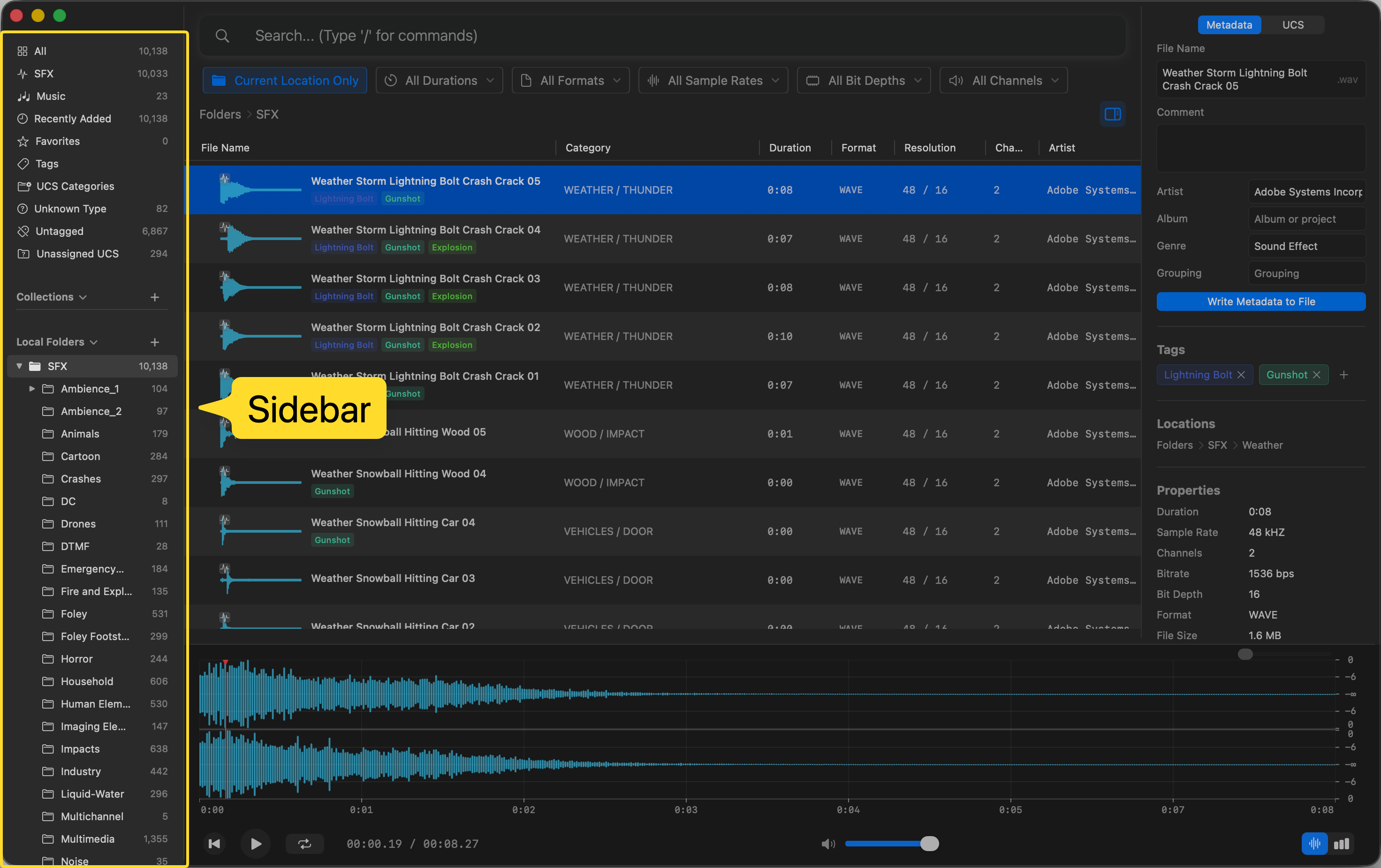
It includes the following sections:
- Built-in Groups
- All — View every indexed audio file
- SFX — Browse sound effects only
- Music — Browse music files only
- Recently Added — See the latest files added to your library
- Favorites — Access files you’ve starred
- Tags — Manage and view all tags
- UCS Categories — Browse by Universal Category System classification
- Unknown Types - Browse files that Curlo AI cannot classify as sound effects or music
- Untagged - Browse files that currently have no tags
- Unassigned UCS - Browse files that have not yet been assigned a UCS category
- Collections — Organize files into custom collections (similar to playlists)
- Local Folders — View the folder tree of your imported directories
Search Bar
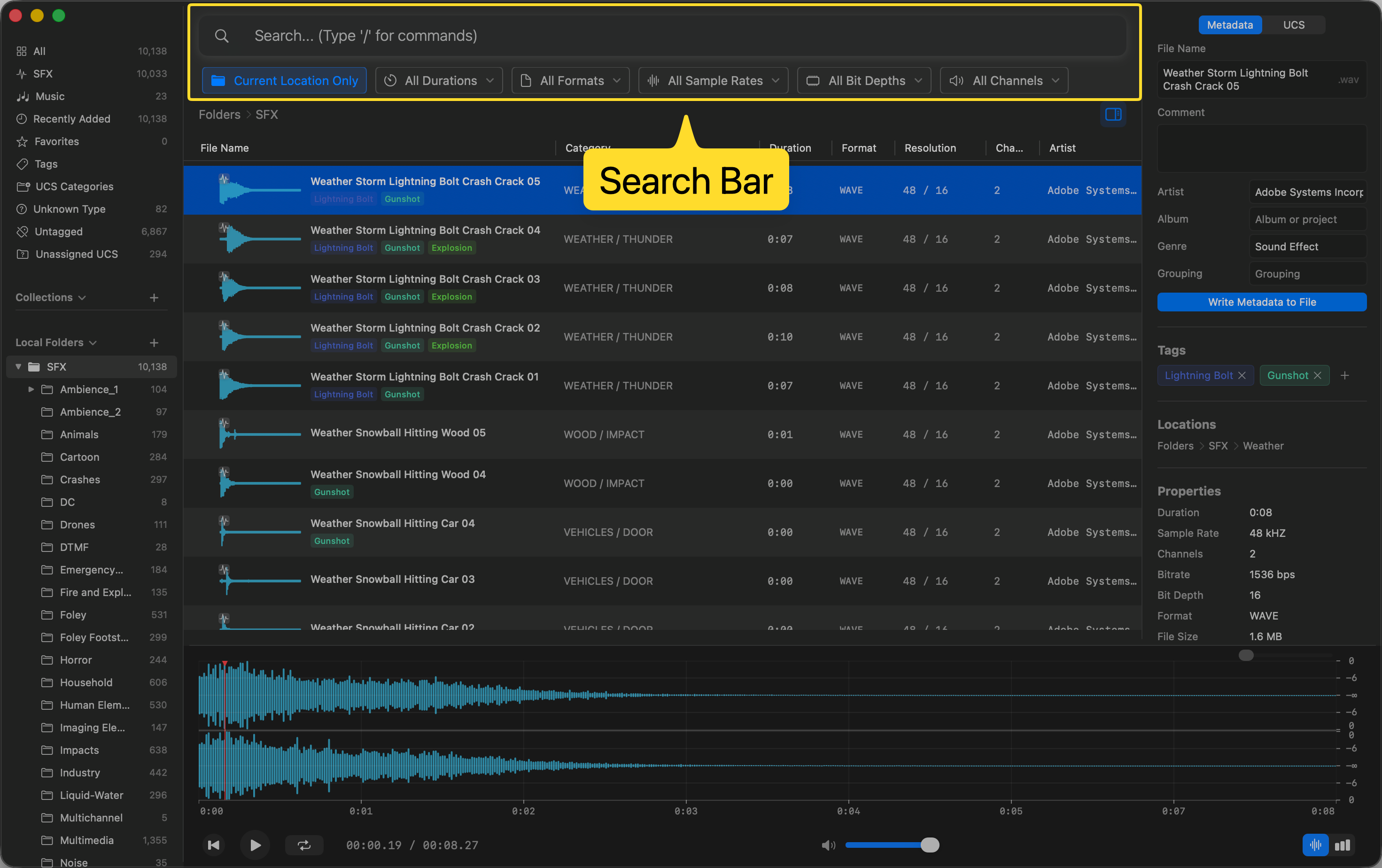
The Search Bar sits at the top of the window and supports keyword search, semantic (AI-powered) search, and advanced filtering.
Asset List
The Asset List is the central panel that displays all matching audio files in a table format.
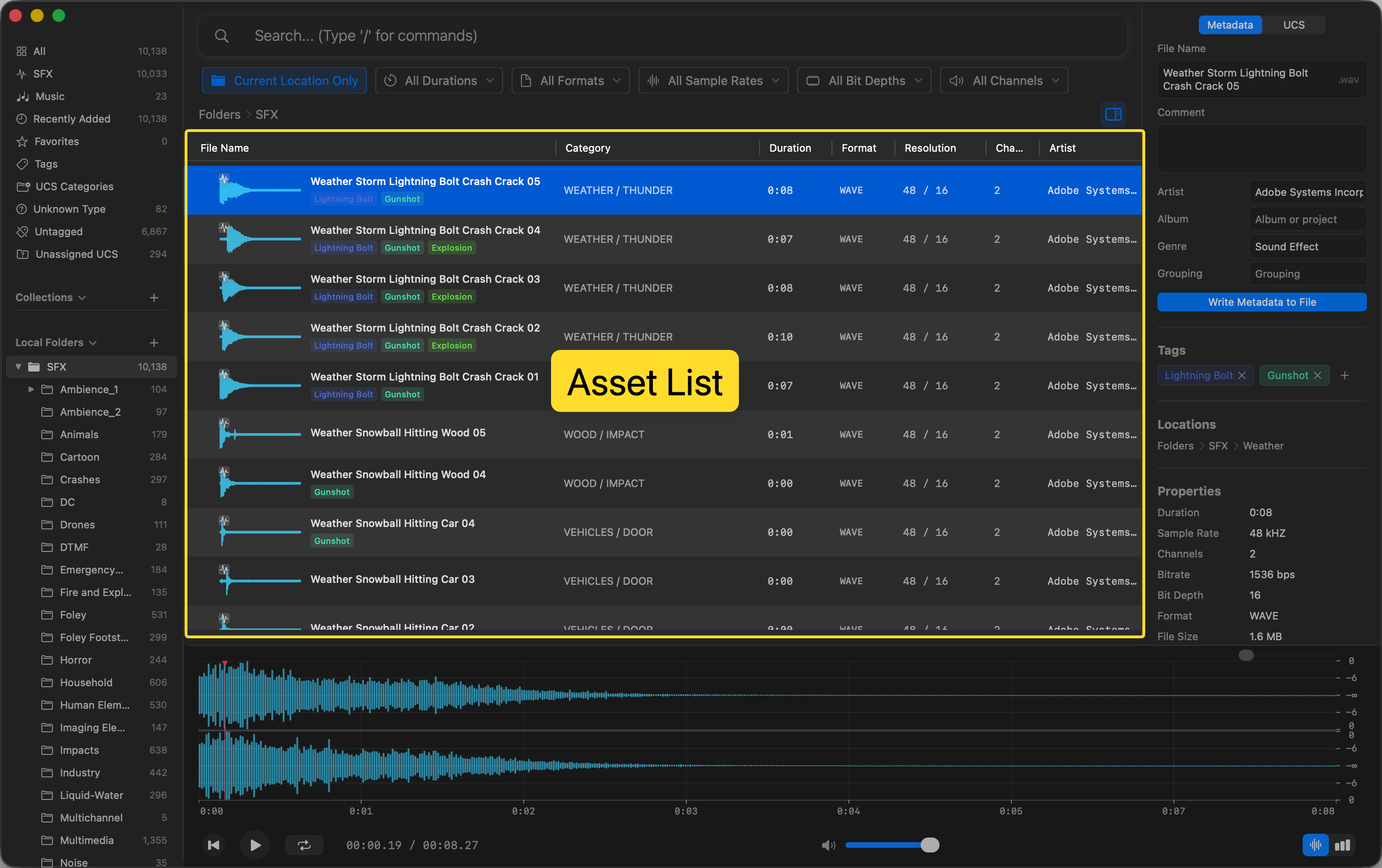
Click any file to select it and load it into the Viewer and Inspector panels. You can also use the Up and Down arrow keys to quickly navigate through the list, and click on any column header to sort the files by that specific attribute.
Viewer (Waveform Player)
The Viewer at the bottom of the window shows a detailed, zoomable waveform of the selected audio file.
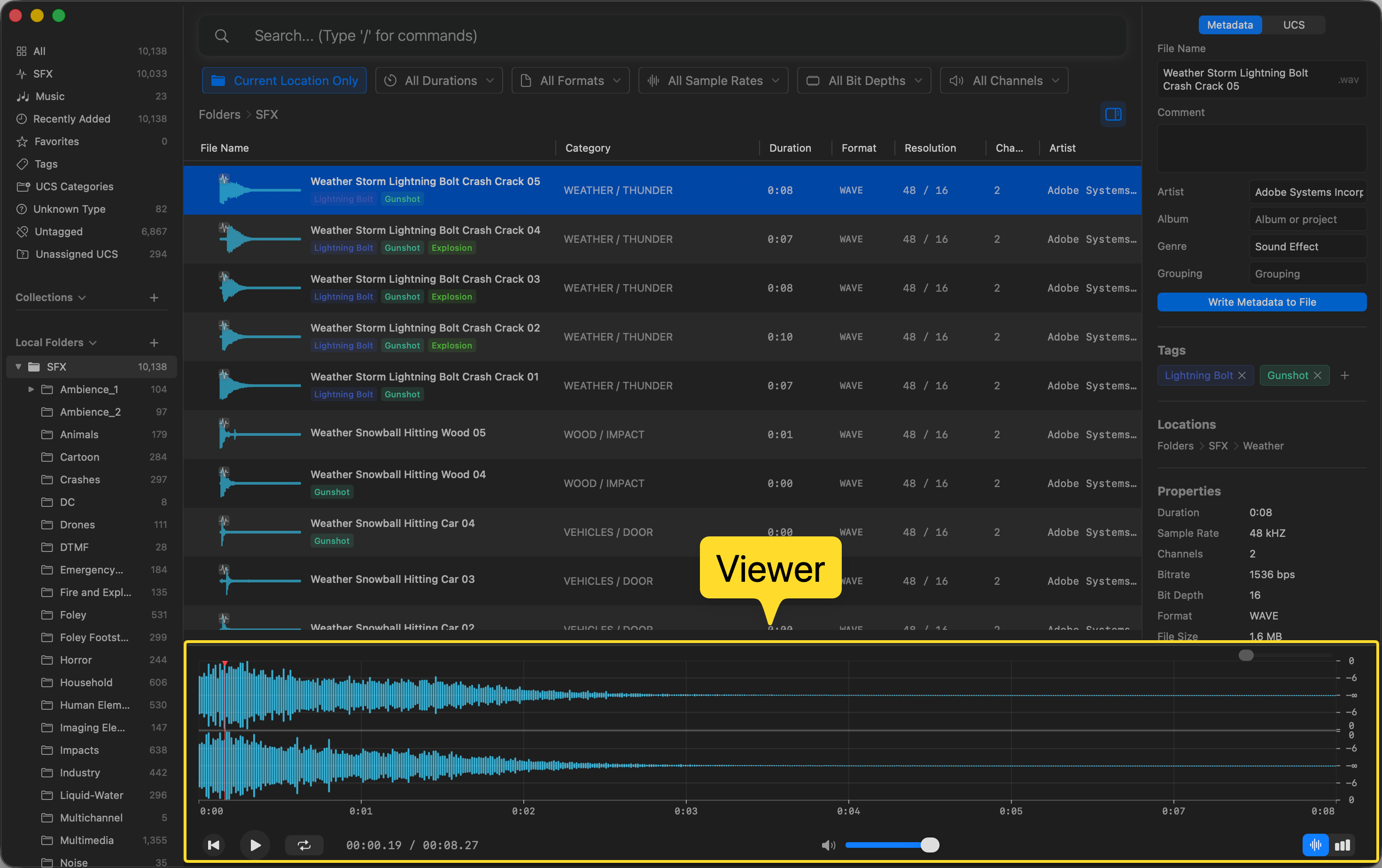
Key features of the Viewer:
- Play / Pause / Back to start — standard transport controls (use
Spaceto toggle play and pause) - Waveform scrubbing — click anywhere on the waveform to jump to that position
- Gesture zooming — use trackpad or mouse gestures to zoom in and out of the waveform for precise viewing
- Loop toggle — enable looping for continuous playback
- Volume control — adjust playback volume
- Clip selection — select a portion of the waveform to drag into your DAW, bounce to a local folder, or bounce to a collection
Inspector
The Inspector on the right side shows detailed metadata and properties for the currently selected file.
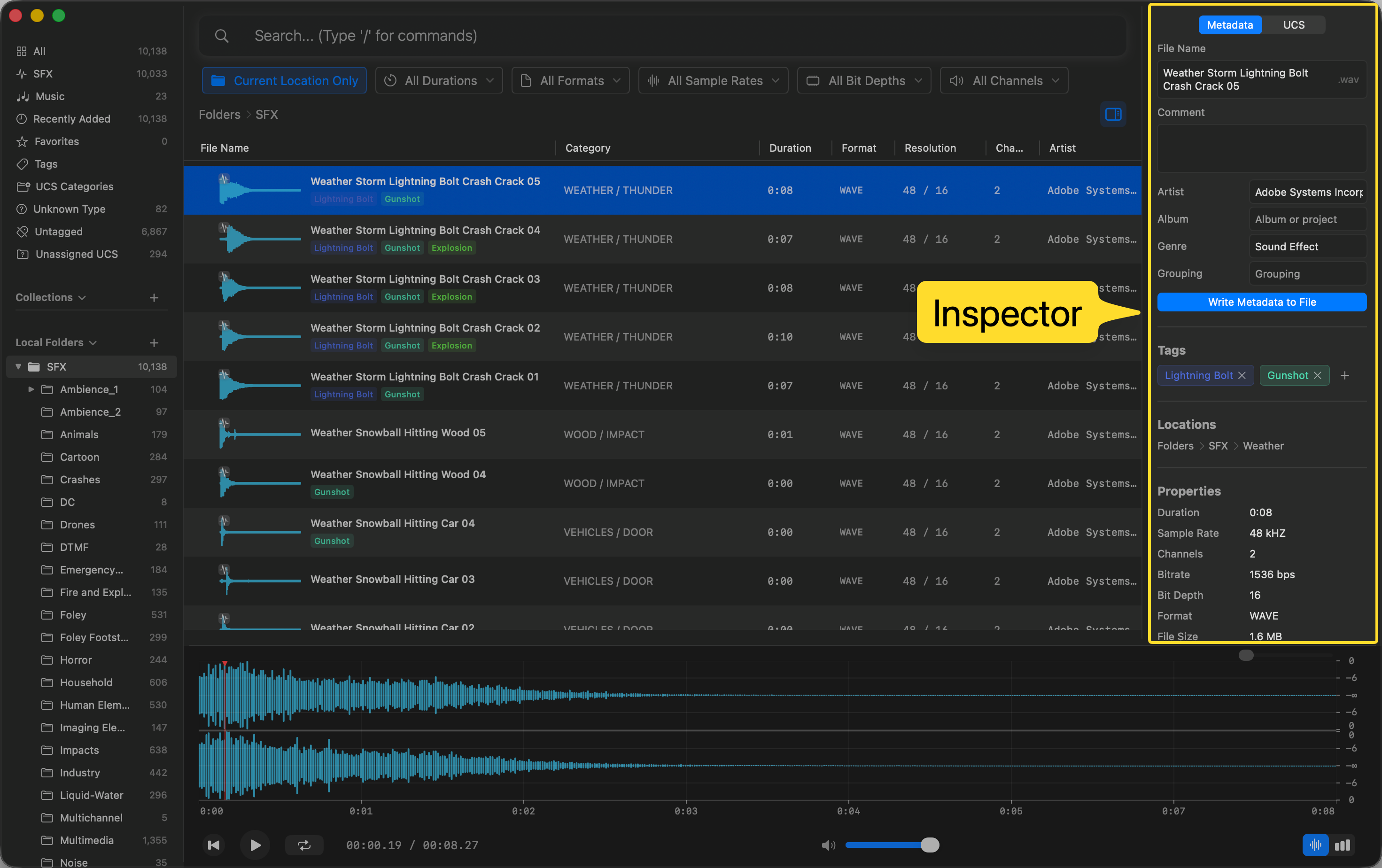
The Inspector has two tabs:
- Metadata — Edit fields like Artist, Album, Genre, Grouping, and Comment. Click “Write Metadata to File” to save changes directly to the audio file.
- UCS — View and modify Universal Category System fields (CatID, Category, SubCategory, FXName, etc.)
Below the metadata, you’ll find:
- Tags — View, add, or remove custom tags
- Locations — See which folders and collections contain this file
- Properties — Technical details including Duration, Sample Rate, Channels, Bitrate, Bit Depth, BPM, Format, File Size and Date Added.
Next Steps
Now that you know the interface, head to the next guide to start building your library:
- Adding Local Folders — Import your audio folders and files into Curlo
- Managing Collections — Organize your audio files into virtual collections
- DAW Integration — Drag files and clips directly into your DAW
- Semantic Search — Use natural language to describe the sound you need
- Metadata Search — Search by file name, category, tags, and more
- Similar Audio Search — Find sounds that are sonically similar to a selected file
- Filter & Sort — Combine search queries with advanced filters and sort results
- Editing Metadata — View and modify audio file metadata
- Managing Tags — Organize your library with custom tags
- UCS Classification — Leverage the Universal Category System