Managing Tags
Tags provide a flexible way to organize and categorize your audio files beyond the standard folder structure and metadata fields.
Creating & Adding Tags
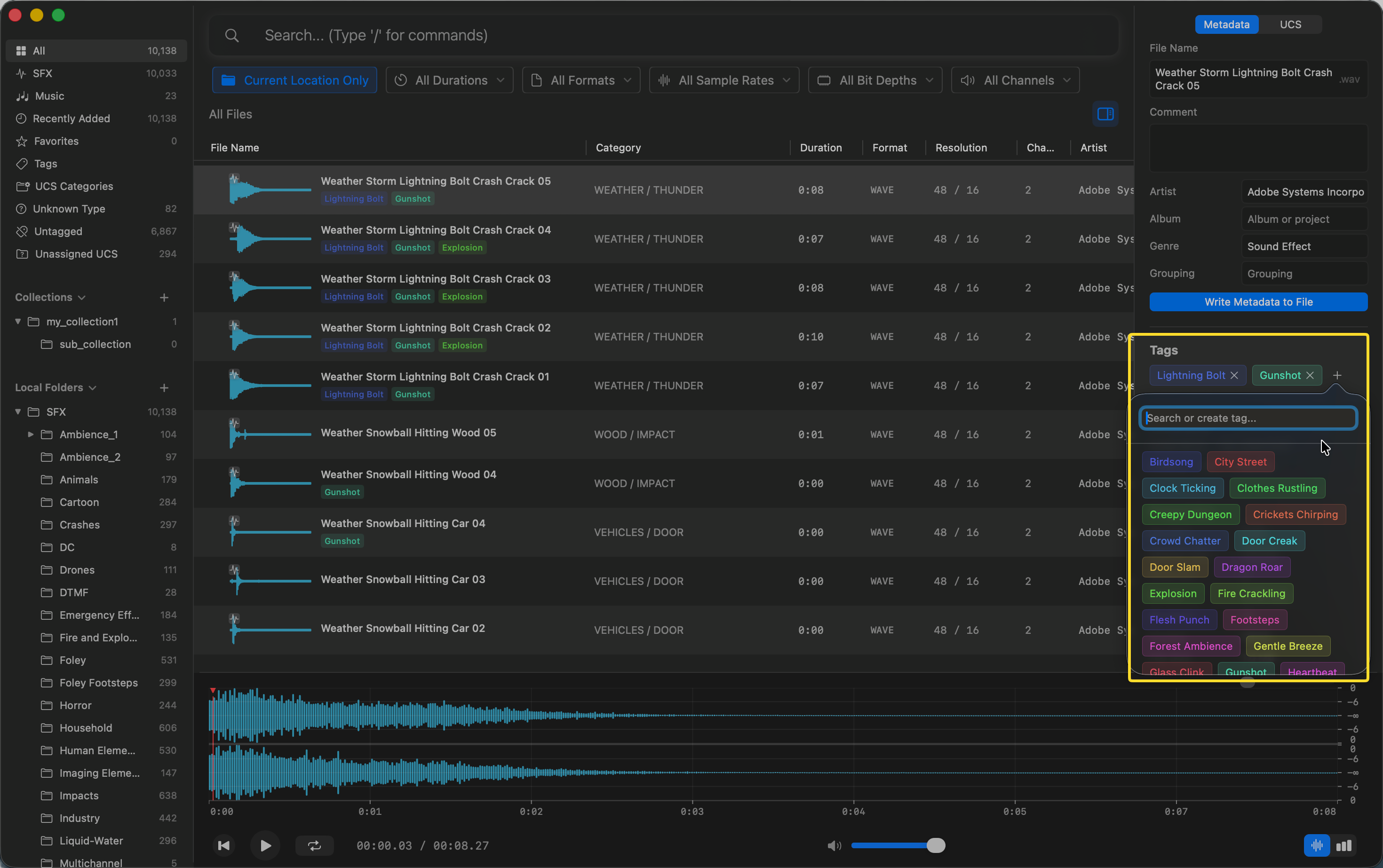
You can add tags directly to selected assets:
- Select an audio file in the asset list.
- In the right Inspector panel, locate the Tags section below the metadata fields.
- Type the name of the tag you want to add.
- If the tag doesn’t exist, you can create it directly by typing its name and pressing
Enter. - If the tag exists, simply click it from the suggestion list.
From the Sidebar
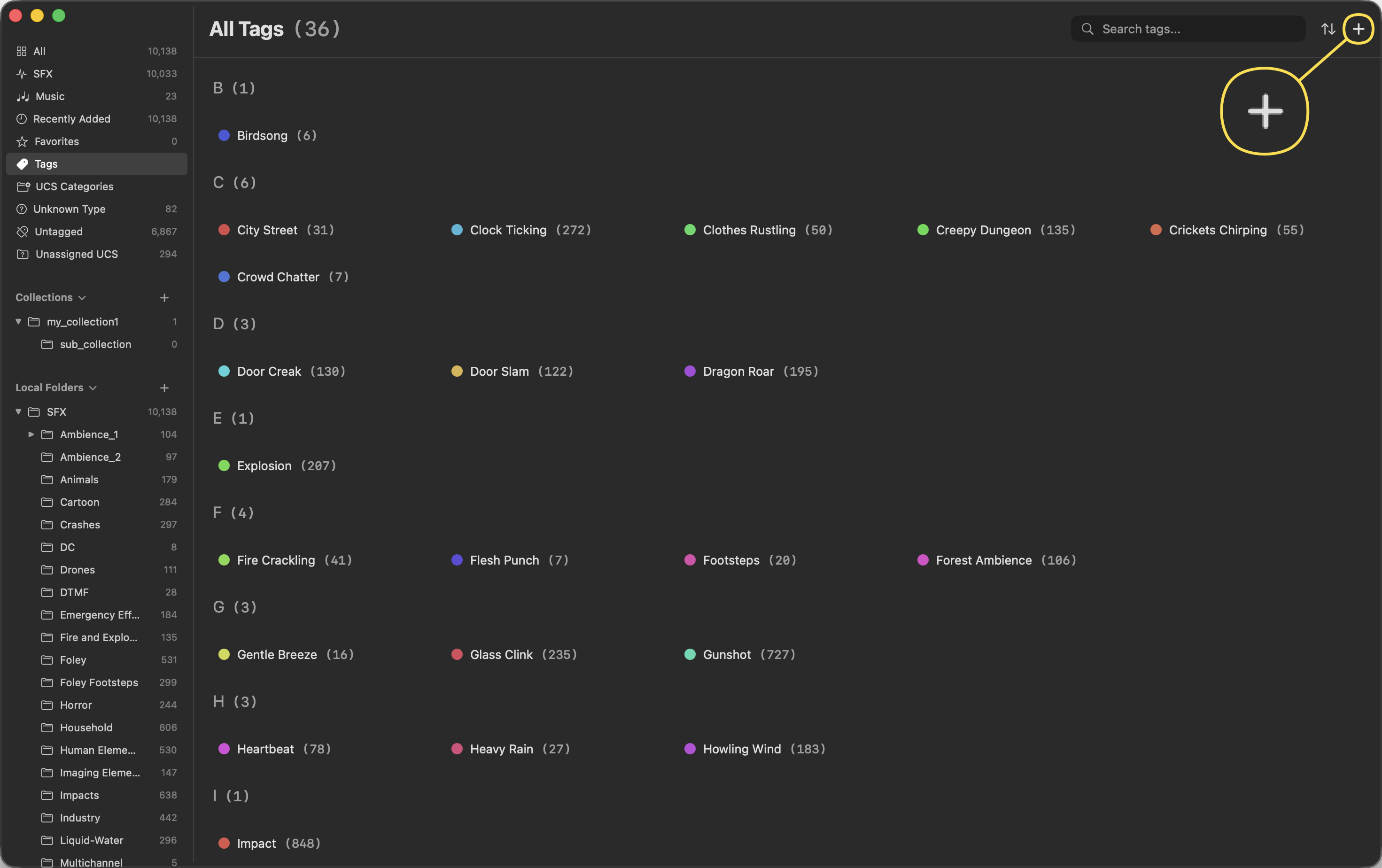
You can also manage all your tags globally:
- Click on Tags in the left sidebar to open the All Tags view.
- Click the input field at the top, type a new tag name, and press
Enterto create it.
Editing & Deleting Tags
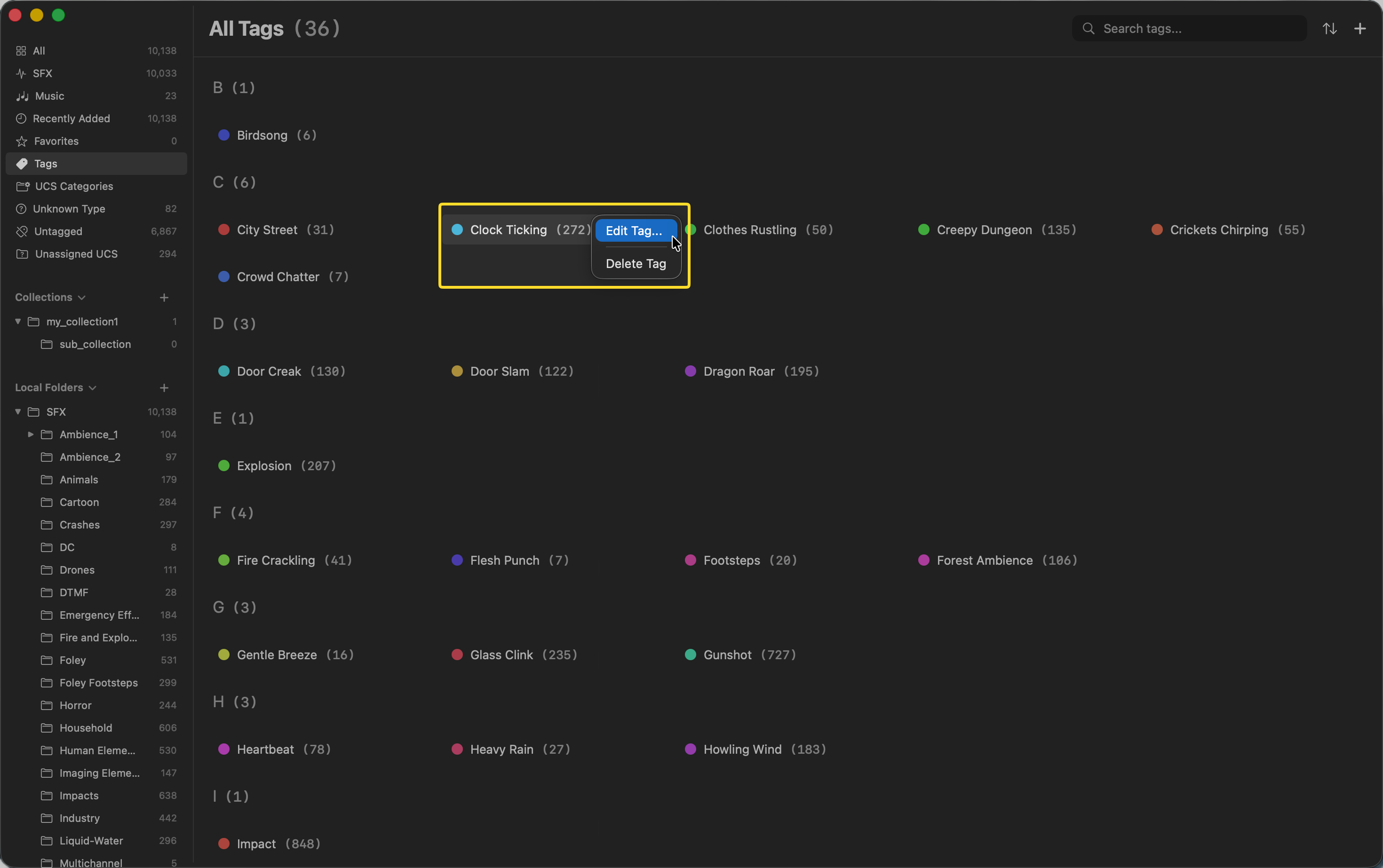
Tags can be globally renamed or deleted from the All Tags view:
- Click on Tags in the left sidebar.
- Find the tag you want to modify.
- Right-click the tag and choose Edit Tag or Delete Tag from the context menu.
- Deleting a tag globally will remove it from all associated audio files.
Filtering by Tags
You can use the search command system to filter your library by tag:
- Type
/tagin the search bar. - Enter the name of the tag you want to filter by.
Alternatively, you can quickly filter by directly clicking any tag label in the Tags view in the sidebar.
Automatic Inference
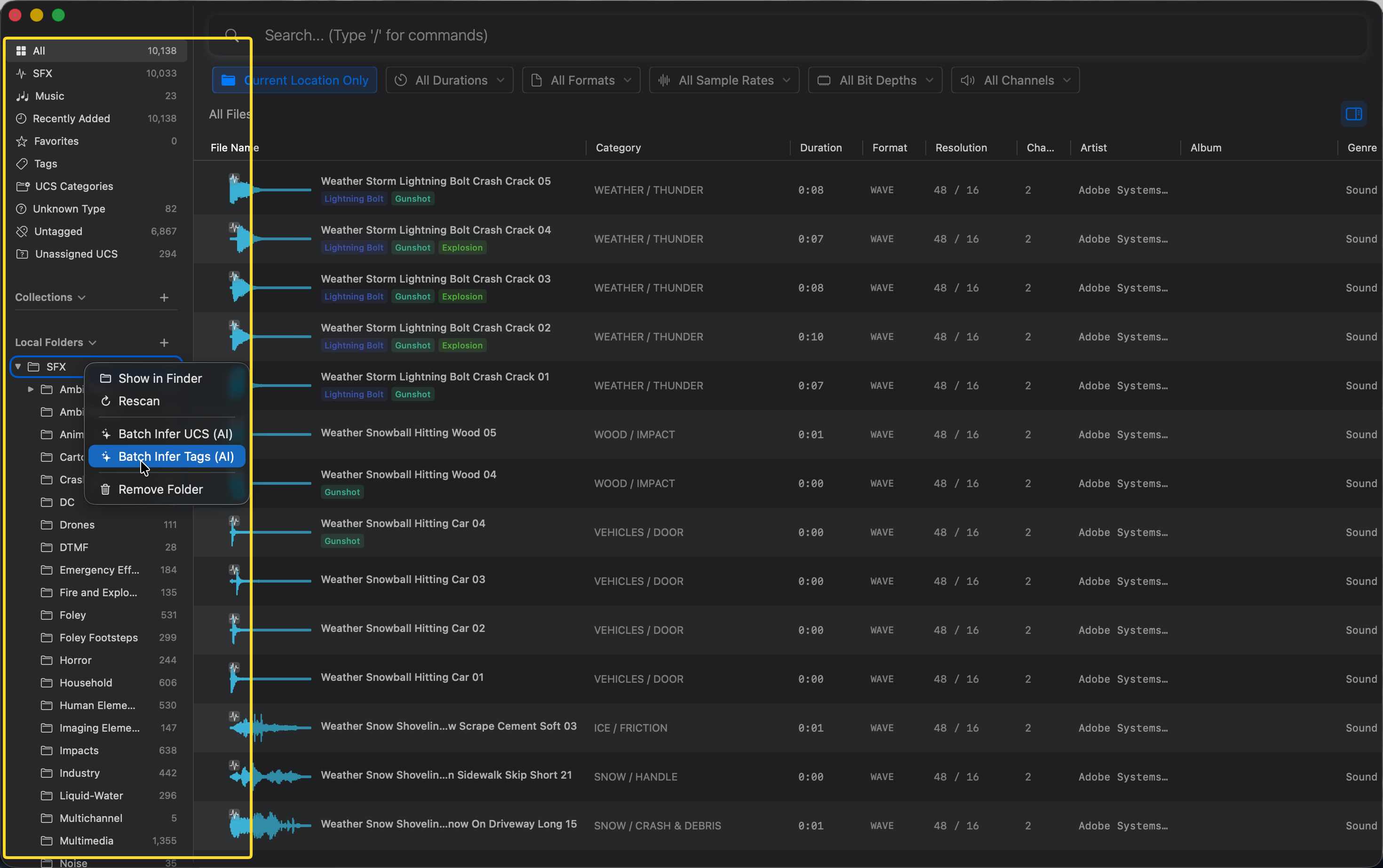
You can use local AI to automatically infer tags for your assets based on their metadata and semantic content.
- In the left Sidebar, right-click on any Folder, Collection, or built-in Group.
- Choose Batch Infer Tags (AI) from the context menu.
- Curlo will analyze all files within the selected group and automatically assign relevant tags.